
Convert participants via Page URL
If you want to track when a referred participant completes an action without writing custom code or calling the JavaScript SDK directly, you can track conversions using Page Visits.
With URL-based conversion tracking, Viral Loops automatically registers a conversion whenever an identified participant lands on a specific URL on your website such as a /thank-you , /welcome , or order confirmation page.
⚠️ Warning: Participants must already be identifying before landing on this page.
How it works
- A referred visitor clicks a referral link and joins your campaign (identifying them in Viral Loops).
- They navigate through your website or signup flow.
- Upon reaching your target page (e.g.,
https://example.com.com/checkout/success), the Viral Loops script detects the visit and automatically marks the participant as converted.
Step 1: Requirements Before You Begin
Before setting up URL conversion tracking, ensure the following prerequisites are met:
- Viral Loops Script Installed: The main Viral Loops JavaScript snippet must be installed inside the
<head>tag of every page on your website, including both the landing page and the target conversion page. - Participant Identification: The user visiting the conversion page must already be identified as a participant in your campaign (either via the main campaign snippet on sign-up or through the Viral Loops widget/form integration).
- Plan & Template: Conversion tracking requires a Growing Plan or higher and is available on supported templates (The Milestone Referral, The Altruistic Referral, Online to Offline, The Universal Referral, and The Tempting Giveaway).
Step 2: Configure Page URL Conversions in the Campaign Builder
- Log in to your Viral Loops Account and open your campaign.
- Go to the Goals step in the setup wizard.
- Select Custom event or conversion as your goal type.
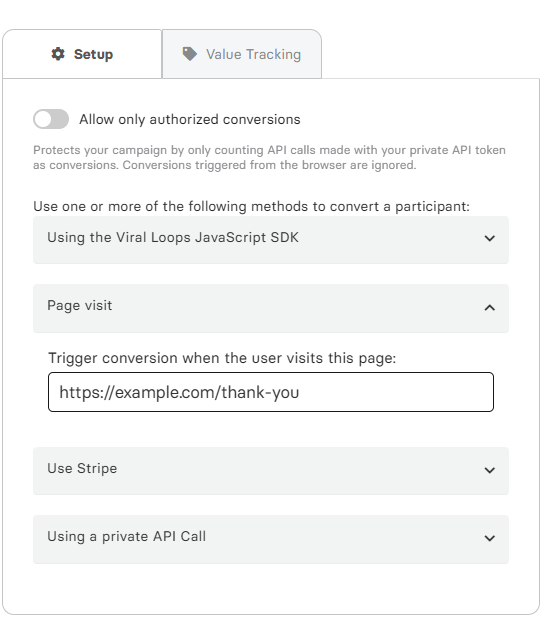
- Under the conversion setup options, select Page Visit.
- Enter the Page URL or URL path where the conversion action takes place (e.g.,
https://yoursite.com/thank-you). - Save your settings and finish configuring your campaign.
Important Considerations & Best Practices
1. Protect the Target Page
Make sure the conversion page URL is behind your goal boundary (e.g., only accessible after a successful form submission, registration, or purchase). If users can access the URL publicly without completing the required action, you risk triggering invalid conversions.
2. Cross-Domain Tracking
If your landing page and conversion target page are hosted on different domains (e.g., yoursite.com and app.yoursite.com), ensure the Viral Loops snippet is embedded on both domains so the participant session is preserved.
To ensure the user is automatically identified on the target conversion domain:
- Install the SDK: Ensure the Viral Loops JavaScript SDK snippet is installed in the
<head>tag of both pages across both domains. - Pass the
userCodeQuery Parameter: Append?userCode=<participant's referralCode>to the destination URL when redirecting the user across domains (for example:https://app.yoursite.com/thank-you?userCode=ABC123XYZ).
When the target page loads, the SDK automatically reads the userCode parameter from the URL, identifies the participant, and successfully triggers the conversion for that page visit.
Related Articles & Developer Resources
Updated 2 months ago